System Settings
Product Licensing
-
Single-Tenant Version:
Go to Platform Management > Version Management to view version information. Click Update License to upload a new license file and update the authorization status. -
Multi-Tenant Version:
License information is uploaded via [Tenant Management Platform > System Settings > Product License]. Tenants can only view license details; they cannot upload new license files.
Menu Configuration
Go to Platform Management > Menu Configuration to manage menu items.
Use the left-side menu tree to select a node, then click Add Sibling Menu, Add Submenu, or Edit to open the corresponding configuration page.
| No. | Property | Description |
|---|---|---|
| 1 | Add Sibling Menu | Adds a new menu at the same level. If at root, a default parent menu code is auto-assigned. |
| 2 | Add Submenu | Adds a child menu to the current node. Its menu code is based on the parent menu’s code. |
| 3 | Menu Type | Specifies whether the item is a menu or a button (function). |
| 4 | API Binding | Defines the API endpoint for button actions. |
| 5 | Status | Only menus with status set to 1 are active. |
| 6 | Display Scope | Choose whether the menu appears in the Admin Console or Self-Service Portal. |
| 7 | Menu Sort Order | Smaller numbers appear first. Determines menu display order. |
| 8 | Menu Path | Absolute path derived from the menu code. |
Delete Menu
Deleting a menu will immediately remove it from display. Use with caution.
API Binding Maintenance
You can manage API endpoints used by menu items under each module.
⚠️ If an API is disabled or deleted and the cache is cleared, corresponding functionality may become unavailable. Proceed cautiously.
Plugin Management
Used to manage plugins related to SSO protocols, authentication methods, identity sources, account provisioning, data connectors, notifications, workflow engines, and password encryption algorithms.
Upload version-compatible plugins as needed.
Metadata
Metadata is used to bind database tables, fields, and entities for unified management.
For example: After adding a new field to idt_user via Metadata, you can use it in a dynamic form for user profiles, configure read/write permissions in [Platform Permissions > Data Permissions] for idt_user, and assign values when creating users in [Identity Management > User Management]. Values are saved directly to the database.
| No. | Field | Description |
|---|---|---|
| 1 | Data Type | Select the field type supported by the database. |
| 2 | Length | For string types, define the storage length. |
| 3 | Precision | For float types, define decimal places. |
| 4 | Auto Execute | Automatically inserts the field into the target database table upon creation. |
| 5 | Execute Later | Field is staged in the system but not yet added to the DB (inactive). |
| 6 | Manual Execute | If you've manually created the field in the DB, click this to sync metadata status. If not, it will fail and remain inactive. |
Delete Metadata
You can batch-delete custom fields. ⚠️ If the field is in use by platform modules, deleting it may break functionality.
Update Metadata
If new fields exist in the database but are not shown in metadata, click Update Metadata to sync the schema.
Bind to Data Dictionary
Click Details in the field list and bind the field to a data dictionary. The system will display field values using localized dictionary values.
Pending Execution
Shows all metadata fields that are queued for sync to the database. You can manually execute these operations.
Execution Logs
View a log of all metadata execution activities per table.
Pending Activation Field Count
Displays the number of fields awaiting activation (i.e., not yet synced to the DB).
Announcement Management
Allows administrators to publish announcements, which appear in the Self-Service Portal > Homepage > News Center or Announcements.
| No. | Field | Description |
|---|---|---|
| 1 | Carousel Image | Display images in a rotating carousel on the portal homepage. |
| 2 | Attachments | Attach files to announcements. They appear in detail view and are downloadable. |
| 3 | Announcement Permissions | If "Restrict Visible Groups" is disabled, the announcement is visible to all users. If enabled, visibility is limited to specified groups. |
| 4 | Popup Notification | When enabled, announcement pops up upon user login to self-service. |
| 5 | Scheduled Display | Define a start and end time. Announcement only displays within that range. |
Manage Active Announcements
Pin/Unpin Announcement
Click System Settings > Announcement Management and use the Pin/Unpin button to change its status. Pinned announcements appear at the top in the Self-Service Portal.
Toggle Popup Display
Enable the Popup toggle so that the announcement pops up when the user logs in. Disable it to prevent popups.
Expire an Announcement
Click the Expire button to make an announcement inactive. Inactive announcements will no longer appear in the portal. You can reactivate it via the “Inactive” tab.
System Parameters
Navigate to Platform Management > System Configuration to access the System Configuration main page. This page is used to configure IDM and SSO-related parameters. Typically, these are pre-configured and should only be modified when necessary.
IDM Settings
Platform Configuration
| No. | Property | Description |
|---|---|---|
| 1 | Registration Settings | - When Enabled, user registration is allowed via API. - When Disabled, registration is blocked at the API level. |
| 2 | Backup Settings | - By Data Volume: If set to 10 records, only the most recent 10 records (success/failure) are retained in request_log and request_log_item. Older successful records are moved to the history tables.- By Time: If set to 30 days, only records from the past 30 days are kept. Older successful records are archived. |
| 3 | Other Settings | - If Reset Password Logging is enabled, admin-initiated password resets are logged in request records. - If disabled, these reset actions are not logged. |
| 4 | Account Delegation Limit | Users can delegate accounts to up to 3 assignees in Portal > Account Delegation. Selecting more than 3 triggers an error. |
Display Settings
| No. | Property | Description |
|---|---|---|
| 1 | Show Positions in Org Tree | - Enabled: Position info is shown in user/org management. - Disabled: Positions are hidden in the organization tree. |
| 2 | Org Tree Sort Order | - Ascending: Sorts by field ascending; if equal, by creation time descending. - Descending: Sorts by field descending. |
| 3 | User Number Sort Order | - Ascending: Users sorted by number ascending in user list. - Descending: Sorted descending. |
| 4 | Org Number Sort Order | - Ascending: When filtered by org, users sorted by org number ascending. - Descending: Sorted descending. |
Permission Model Configuration
| No. | Property | Description |
|---|---|---|
| 1 | Expiring Permission Threshold | Sets a threshold in days (e.g., 30). Permissions nearing expiry show under Portal > My Permissions > Expiring Soon. |
| 2 | Self-Service Permission Release | - Disabled: Users cannot release their own permissions. - Enabled: Users can release their own permissions. |
| 3 | Subordinate Permission Release | - Disabled: Org managers cannot release subordinates' permissions. - Enabled: They can. |
Validation Configuration
| No. | Property | Description |
|---|---|---|
| 1 | Unique Org Code Validation | - Enabled: Enforces unique org codes on create/edit. - Disabled: No uniqueness check. |
| 2 | Unique Org Name Validation | - Enabled: Enforces unique org names within same parent. - Disabled: No uniqueness check. |
| 3 | Initial Password Allowed Characters | E.g., if set to @, only @ is allowed in fixed or dynamic password templates. Other symbols are blocked. |
| Org Unique Expression | E.g., org.orgCode: Sets custom_unique to org code after save. | |
| Position Unique Expression | E.g., job.code: Sets custom_unique to position code after save. | |
| User Unique Expression | E.g., user.userUid: Sets custom_unique to user ID after save. |
Security Configuration
| No. | Property | Description |
|---|---|---|
| 1 | Plugin Field Encryption | Encrypts plugin-related field data. |
| 2 | Business Field Encryption | Encrypts internal business field data. |
| 3 | User Password Encryption | - Encrypts user password field. - Supports salting: random salt or fixed salt (configurable). - When algorithm is changed, passwords are updated on user login or password change, depending on whether "update on login" is enabled. |
Sync Configuration
| No. | Property | Description |
|---|---|---|
| 1 | Retry Attempts on Sync Failure | Number of retries if sync fails. If set to 1, the system retries once. Set to 0 to disable retries. |
| 2 | Permission Tables | Controls visibility of tables in Platform Permissions > Data Permissions. Adding/removing affects permission config options. |
| 3 | Include Concurrent Positions | Applies to systems using push via API: - Enabled: Sync includes both primary and concurrent positions in payload. - Disabled: Only primary. |
Expiration Configuration
| No. | Property | Description |
|---|---|---|
| 1 | User Expiry Reminder (days) | When set to 5, users with a departure date within 5 days will trigger the scheduled task userAccountExpire (runs every 10 minutes). Recipients set under Notifications > IDM > User Expiring will receive reminder notifications. |
| 2 | Account Expiry Reminder (days) | When set to 5, accounts with a deactivation date within 5 days will also trigger the userAccountExpire task. Recipients set under Notifications > IDM > Account Expiring will be notified. |
External Services
Weak Password Detection Service
This feature requires integration with the [Weak Password Detection (PVS)] product.
When enabled, password updates will be checked against the PVS service if the password policy includes weak password validation.
Steps:
- Set weak password validation level (e.g., Level 4) and configure the correct service endpoint.
- Enable the weak password checkbox in the custom password policy.
- Assign the policy to a user group.
- When users in the group change their password, if it doesn't meet Level 4 strength, a validation error is shown. Messages are returned from the PVS database.
AD Reverse Sync Service
This service allows password changes made in Active Directory (AD) to sync back to the IAM platform. This resolves password mismatch issues between IAM and AD, improving user experience by avoiding dual-password scenarios.
The AD Reverse Sync plugin must be installed and configured in your AD environment. Full setup instructions: Documentation
Preconditions:
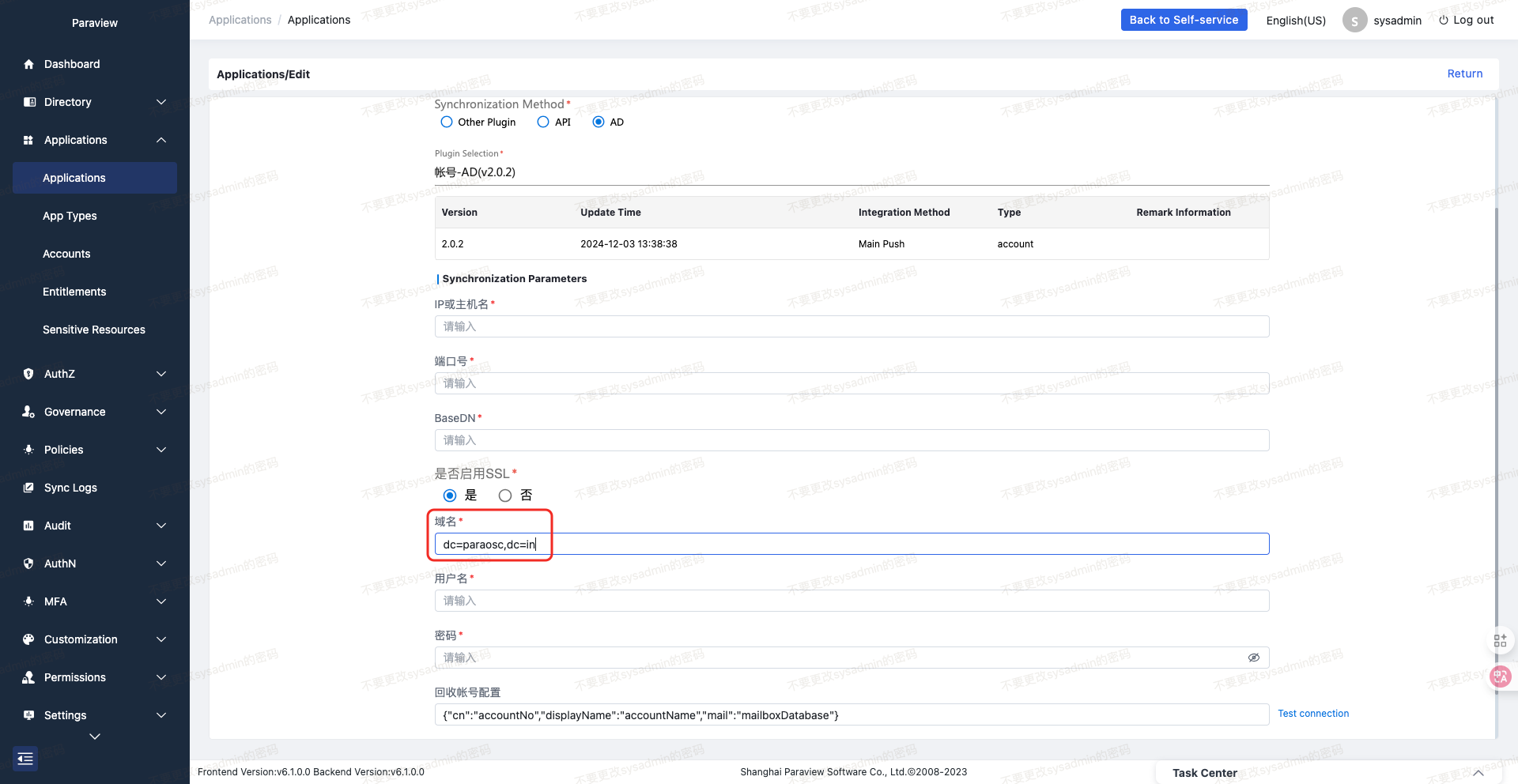
- Configure an AD application in IAM. The domain name must match the AD domain and be globally unique.
- Ensure the account being updated exists in both AD and the corresponding AD application in IAM.
1. Enable AD Reverse Sync
The reverse sync only works when this toggle is enabled. If disabled, the failure reason is logged under Audit Management > AD Reverse Sync Logs.

2. AD Sync Whitelist
Add the IP addresses of AD servers to the whitelist. If the source IP is not whitelisted, sync will fail, and the failure reason is shown in the audit logs.

3. Sync User Passwords
When enabled, passwords changed in AD will sync to IAM. If disabled, password changes in AD won't be reflected in IAM.
Import/Export Configuration
| No. | Property | Description |
|---|---|---|
| 1 | Excel Import Row Limit | If set to 2, importing more than 2 rows (users, orgs, positions, accounts, app roles, resources, groups) will show a validation warning. |
| 2 | Excel Export Row Limit | If set to 2, exporting more than 2 rows from the above modules will trigger a warning message. |
Portal Settings
| No. | Property | Description |
|---|---|---|
| 1 | Show Requestable Apps | - Enabled: "My Apps" in the portal shows requestable applications. - Disabled: Hides the requestable apps section. |
Captcha Configuration
| No. | Property | Description |
|---|---|---|
| 1 | Resend Countdown (seconds) | Sets the cooldown time before a new verification code can be sent. |
| 2 | Code Validity Duration (minutes) | Defines how long a code is valid after being sent. |
| 3 | Max Incorrect Attempts Before Expiry | Number of incorrect attempts allowed. If set to 5, the code expires after 5 wrong entries—even if the correct code is used afterward. |
SSO Configuration
Login Settings
| No. | Setting | Description |
|---|---|---|
| 1 | url | Redirect URL for the business application. |
| 2 | Forced Password Reset Expiry | Expiration time for forced reset page parameters used by the portal. |
| 3 | Static Page Context | Context used by certain features (pre-configured). |
| 4 | SSO Default Redirect URL | The default redirect address after successful SSO authentication. |
| 5 | AT Login | If enabled, ATAUTH is used when logging in across different browsers. |
| 6 | Multi-QR Support | If enabled, a single QR code can support login for multiple apps from the login page. |
Protocol Password Encryption
- Enforce Password Encryption: If enabled, passwords must be encrypted when using the
passwordgrant type in SSO protocols.
MFA Configuration
| No. | Setting | Description |
|---|---|---|
| 1 | App-Specific MFA | - Disabled: If a high-priority MFA was used in App A, MFA is not triggered again for App B within validity period. - Enabled: MFA method selection is shown again when switching between apps. |
| 2 | MFA Cache Timeout (seconds) | Validity period for app-specific MFA sessions. |
| 3 | MFA Redirect URL | URL of the page used for secondary authentication. |
Internet Login Settings
- Auto-Bind Internet Users: If enabled, IAM users are auto-bound to third-party identities during external logins.
Binding Logic: If the third-party account's field (e.g., mobile number) matches the IAM user, login proceeds without binding.
Facial Recognition
Base configuration for face login (pre-configured).
Mobile App Configuration
- App Download URL: Link to the mobile app download page (pre-configured).
Protocol Settings
| No. | Setting | Description |
|---|---|---|
| 1 | SAML Fail-Fast | If enabled, SAML component terminates on initialization failure. |
| 2 | SAML Metadata Encryption Algo | Default is RSA. |
| 3 | Verify Metadata File | If enabled, signature and validity of uploaded metadata will be verified in [App Configuration]. |
| 4 | CAS ST Max Uses | Maximum usage count for CAS Service Ticket. |
| 5 | CAS ST Validity (seconds) | CAS Service Ticket validity period. |
| 6 | OIDC ID Token Public Key | Public key used to validate ID token in downstream OIDC logins. |
Privileged Account Configuration
[This feature is currently disabled. Actual use bypasses SSO and goes through Gateway directly.]
Domain Settings
Configure the domain used for SSO redirection.
TGC (Ticket Granting Cookie) Settings
| No. | Setting | Description |
|---|---|---|
| 1 | Encrypt TGC | Enables encryption of TGC cookie (default: enabled). |
| 2 | TGC Encryption Key | Master key used to encrypt TGC (pre-configured). |
| 3 | TGC Signing Key | Key used to verify integrity of TGC (pre-configured). |
| 4 | Cookie Expiry (sec) | Duration the cookie remains valid (default: unlimited). |
| 5 | Max TGT Lifetime | Maximum validity of the TGC session (default: 24 hours). |
| 6 | TGT Validity (sec) | TGC cookie lifespan (default: 24 hours). |
Logout Configuration
Configure what data should be cleared upon logout.
Gateway Settings
| No. | Setting | Description |
|---|---|---|
| 1 | Access Token Validity (seconds) | Validity of accessToken issued by the gateway (default: 7200). |
| 2 | Max Access Token Validity (sec) | Maximum lifespan of accessToken (default: 7200). |
| 3 | TGT Refresh on Check | If enabled, TGT is refreshed on accessToken check but not beyond the max validity. |
Default App Auth Method Configuration
[Currently unused.]
Other Settings
| No. | Setting | Description |
|---|---|---|
| 1 | Long Poll Expiry | Validity of a single long-polling session. Used in QR code login flow. |
| 2 | Long Poll Interval | Interval between long-polling requests. |
Task Scheduler Center
The Task Scheduler Center integrates with the xxl-job platform to provide real-time monitoring of scheduled jobs. It supports creating, executing, stopping, and viewing the execution history of tasks. This gives IT administrators powerful tools for managing IAM-related scheduled operations.
Execution Dashboard
Monitors scheduled job executions and provides reports on job count, execution frequency, executor distribution, and task status metrics.
Job Management
Allows filtering of tasks by executor, status, job description, and owner.
⚠️ Note: The IAM platform includes built-in jobs (e.g., password expiration reminders). Do not delete them. Tasks created by business modules (e.g., identity source sync) are also managed here.
Add New Job
After configuring base info, scheduling parameters, task logic, and advanced options, click Save to create the job.
Note: Developers must implement the corresponding job logic in the backend code.
Job Actions
| No. | Action | Description |
|---|---|---|
| 1 | Execute Once | Manually triggers the job immediately. |
| 2 | View Log | Displays the most recent execution log. |
| 3 | Registered Node | Shows the address of the registered executor. |
| 4 | Next Execution | Lists the next 5 scheduled execution times. |
| 5 | Stop | Stops the job from executing. |
| 6 | Edit | Opens the job for editing. |
| 7 | Delete | Deletes the job. ⚠️ Do not delete built-in tasks. |
| 8 | Copy | Creates a copy of the current job. |
Execution Logs
Allows filtering and viewing job execution logs by executor, task, status, and time.
- Click on Task ID to view the executor address and handler details.
- Click on Schedule Note to view job comments.
- Click Execution Log in the Actions column to view job logs.
Executor Management
This section manages executors and their parameters.
⚠️ IAM includes 3 built-in executors:
idm,SSO, andmfa. Do not delete them.
Workflow Engine
The workflow engine handles approval processes initiated by users from the Portal.
If the Paraview BPM system is licensed, configure the workflow integration here.
| No. | Setting | Description |
|---|---|---|
| 1 | Permission Copy Flow | Approval process for permission copy requests. |
| 2 | Global Default Workflow | Fallback process when no specific workflow is matched. |
Permission Model Types
Used to manage permission model types and define their applicable user scopes. When configuring permission models under Authorization Center > Permission Models, these types will be available for selection and filtered by the associated scope.
| No. | Attribute | Description |
|---|---|---|
| 1 | Model Type Name | Available type when configuring a permission model. |
| 2 | Scope | User group filter applied when the type is selected. |
Mapping Dictionary
Used for mapping identity source values to user-friendly IAM display values. Currently only required for AD integrations.
| No. | Attribute | Description |
|---|---|---|
| 1 | Default Value | If enabled, values that do not match the mapping use the default. If disabled, fallback values from staging tables are used. |
| 2 | Mapping Rule | Maps raw values from the data source to human-readable display values. |
Import Mapping
| No. | Action | Description |
|---|---|---|
| 1 | Create New Mapping | Download and fill the template, then upload it. Data is imported and displayed as new entries. |
| 2 | Update Existing Mapping (Keep Old Data) | Select an existing mapping and import updated data. Original data remains; UI will display both existing and new data. |
| 3 | Update Existing Mapping (Clear Old Data) | Select an existing mapping and enable Clear Existing Data. New data overwrites old entries. |
Internationalization (i18n)
This module manages multilingual translations for the IAM system. English and Chinese are built-in, but you can manually add support for other languages.
| No. | Type | Description |
|---|---|---|
| 1 | Error Codes | Translations for user-facing error messages triggered via APIs. |
| 2 | Metadata Fields | Translations for metadata field labels in System Settings > Metadata. |
| 3 | Dictionary Values | Translations for values in System Settings > Data Dictionary. |
| 4 | Attribute Values | Translations for input/display values, e.g., application names in App Management. |
| 5 | Frontend Text | Translations for UI display labels and components. |
Clear Cache
If changes to i18n content are not reflected in the UI, click Clear Cache to force refresh.
Export Translations
Supports two export types:
- Empty Values: Export only untranslated entries for maintenance and re-import.
- All Data: Export the complete set of translations for review or backup.
Import Translations
Download the template (empty or full), fill in translations, and import them into the system. You can choose to skip existing values or overwrite them.
Language Maintenance
Click Maintain Languages to open the interface. You can:
- Add new languages to the system.
- Choose whether to enter translations immediately or defer.
📌 Display Name for Language Switcher — Sets the visible label when users choose a language.

System Settings
| No. | Setting | Description |
|---|---|---|
| 1 | Allow Language Switching | If enabled, language switcher appears in the portal, console, and login page. |
| 2 | Default Language | Specifies the default display language in the language list. |
| 3 | First Login Language | - If set to Default, the system uses the default language. - If set to Follow Browser, it uses the browser locale. |
Data Dictionary
This module defines enumerated values used across the IDM system. It can be linked to metadata fields so that certain field values are constrained to a predefined list.
⚠️ Note: These values are generally initialized during setup. Avoid modifying them unless necessary.