Authentication Settings
The Authentication Settings module allows you to customize platform certificates, authentication methods, and protocol configurations (standard protocol authentication sources). For example, if your organization needs to configure third-party authentication sources (e.g., WeChat scan login), you can set related parameters here first.
Authentication Methods
Identity Source Configuration
| Identity Source | Description |
|---|---|
| Local DB | Compares the username and password with local database records. Login succeeds if the credentials match. |
| AD/LDAP | If a user exists in both AD (or LDAP) and the local DB, login succeeds. If the passwords differ, the AD/LDAP password is synced to the local DB. To enable this source, configure: • AD Authentication • LDAP Authentication To allow password changes from the portal to sync to AD/LDAP, configure account provisioning policies. See Provisioning - Account Supply. |
| Custom Plugin | Custom plugins are now supported. Upload the plugin in Plugin Management. Once selected, a new tab will appear for configuration. |
Platform Login Account
Defines the supported account formats for username+password login (or any method requiring username input such as OTP, FIDO). The configured hint will appear in the login input field.
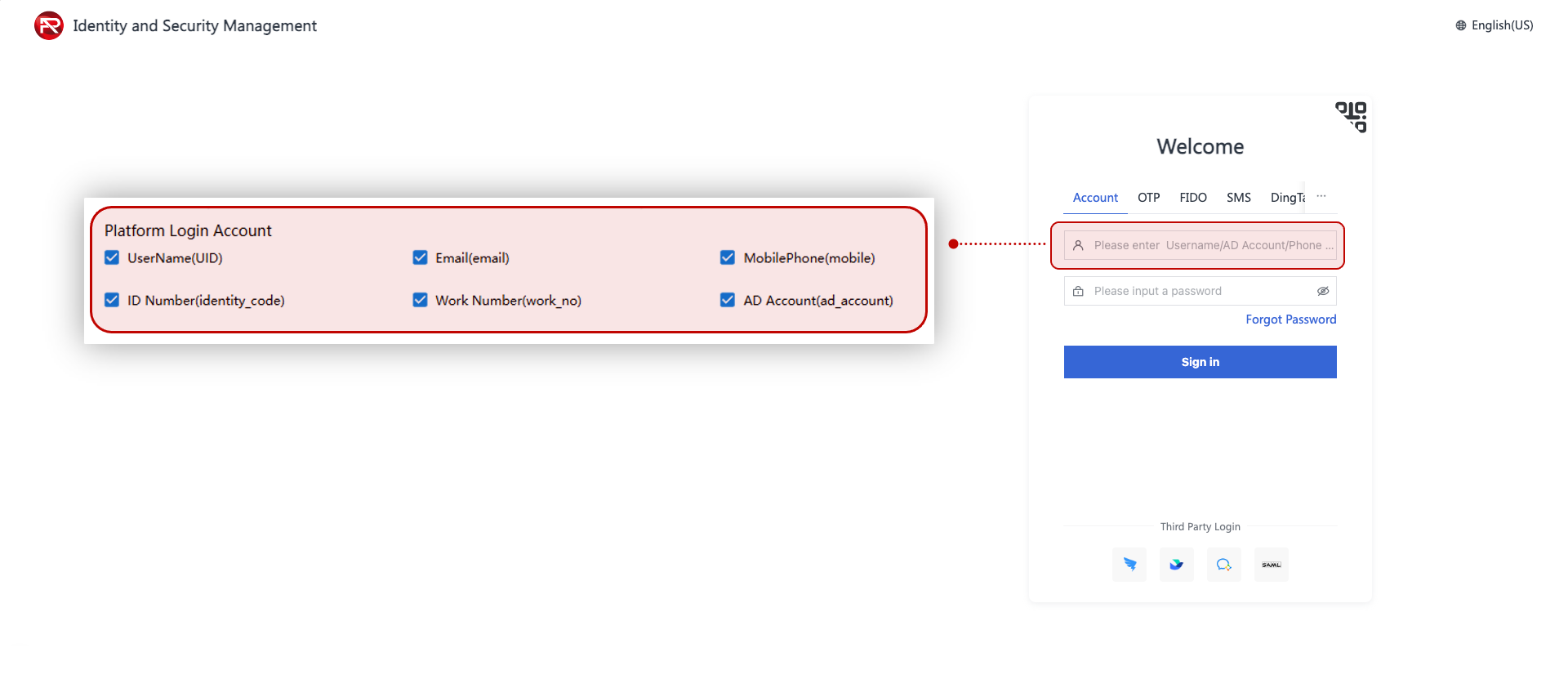
AD Authentication
Configure AD connection on the left panel. Click "Test Connection" to validate, then click "Save". If the connection fails, verify input information.
| Term | Description |
|---|---|
| AD | Active Directory is a practical implementation of LDAP. For example, Microsoft Windows domain controllers use LDAP to manage user and permissions data. The AD domain stores user accounts, devices, and shared resources, with Active Directory Domain Services (AD DS) handling CRUD operations. |
| Enable SSL | Uses SSL encryption during transmission. |
| Initial Pool Size | Minimum idle TCP connections. |
| Max Pool Size | Maximum concurrent TCP connections allowed. |
AD Single Sign-On
Configure AD SSO on the right panel. Once configured, devices joined to the AD domain can access the platform without password login.
LDAP Authentication
Open the LDAP configuration page. After completing the settings, click "Test Connection". On success, click "Save". If it fails, double-check your inputs.
Domain Configuration
You can configure up to three domains. After adding them, map each domain to its corresponding service and route in the gateway to support multi-domain login.
Authentication Method Enablement
Enable an authentication method by selecting it. To make it appear on the login page, also configure it in Personalization - Dynamic Pages - Login.
Common Settings
Edit each method to configure basic info. Enabled methods are displayed on the right.
| No. | Feature | Description |
|---|---|---|
| 1 | Level | Defines login level. Higher level skips second-factor authentication for lower levels. |
| 2 | Timeout | Sets timeout for login attempts. Re-authentication is needed after expiration. |
| 3 | Static Password | If enabled, users must also enter a password along with any other method. |
| 4 | Password Type | Options: • Password Only (enter password) • OTP Only (enter OTP) • Combined (e.g., enter password+OTP as one string) |
Secure App Quick Auth (Mobile)
Enabling mobile-based methods allows users to log in via corporate security app on the web platform.
| No. | Method | Description |
|---|---|---|
| 1 | One-Tap Login | Previously logged-in device info is stored. User confirms login in the mobile app without password. |
| 2 | Face Recognition | Users can authenticate via face recognition on the mobile security app. |
| 3 | QR Code Scan | User scans QR code on the login page using the security app to log in. |
| 4 | OTP | User binds OTP and enters a code generated in the security app or WeChat mini program. |
Third-Party Login
To use third-party login, first register your application on the relevant platform, get the app credentials, and set the callback URL. Fill these details into the platform configuration.
- If the user account is already bound, login succeeds.
- If not, the system will prompt the user to bind the account after authorization.
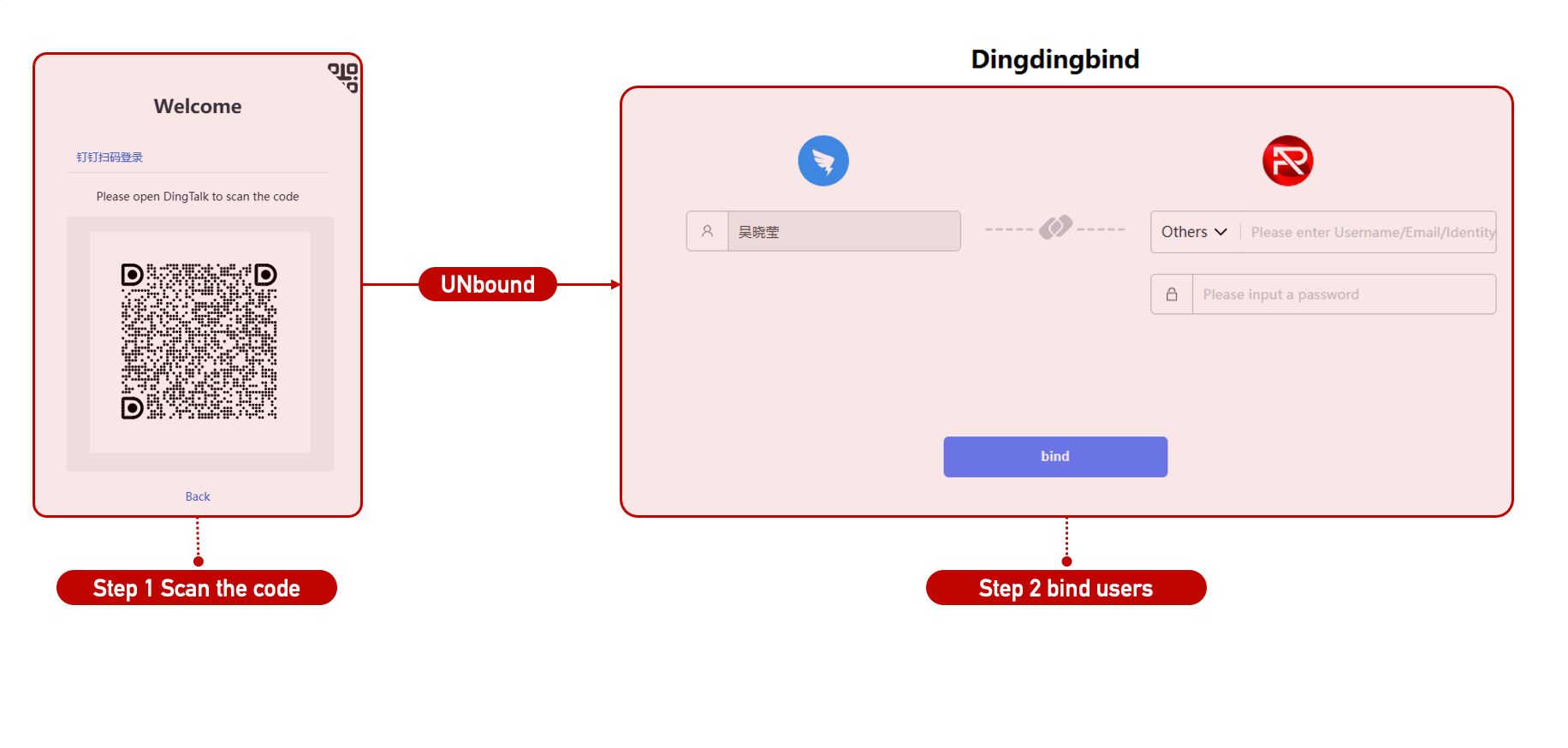
Internet Verification Code
Enables login via verification codes (e.g., SMS, email). Requires proper notification configuration:
| No. | Feature | Description |
|---|---|---|
| 1 | Notification API | Configure API endpoints in Personalization - Notification Methods. |
| 2 | Notification Content | Set content via Policy Management - Notification. |
Biometric Authentication
Allows users to log in via fingerprint or face recognition.
| No. | Requirement | Description |
|---|---|---|
| 1 | ESSO | ESSO plugin must be installed to enable biometric login. Available in [Selfcare - Plugin Download]. |
| 2 | Face/Fingerprint Binding | Can be done in [Selfcare - Account Security] or [Authentication - Biometrics]. |
| 3 | Fingerprint Device | Device must be installed and driver properly configured. |
| 4 | Camera Access | Required for face authentication. |
Additional Configurations
Includes browser-based and mobile-based authentication methods, as well as certificate support.
Cross-Browser Login
ESSO plugin enables users to launch apps directly in other browsers via [Selfcare - Applications].
Mobile Login
Configure DingTalk, WeChat, and WeCom login methods. Bound accounts can authenticate directly. If unbound, users are prompted to bind after third-party authorization.
Single Sign-On Protocols
ESSO / LTPA Protocols
Supports adding, editing, and deleting ESSO or LTPA protocols. These can be selected when configuring single sign-on for applications in [Application Management - App Config].
ESSO shown here represents "Form Auto-fill" where scripts are bound to auto-fill login forms.
OAuth Protocol
Go to [Authentication - SSO Protocols - OAuth], update the info, and save.
| Term | Description |
|---|---|
| Code | Temporary code exchanged for user info from SSO server. Valid for one-time use. |
| AccessToken | Token used to access services; typically valid for one hour. |
OIDC Protocol
Go to [Authentication - SSO Protocols - OIDC], modify the settings and save.
- Issuer Identifier: Used by downstream OIDC apps to verify the
id_tokenissuer.
SAML Protocol
Go to [Authentication - SSO Protocols - SAML] to configure SAML settings.
You can download signing/encryption certificates here, which are needed in [Application Management - App Config - SAML SSO Settings].
Operating System Login
If you purchased the Operating System module, you can install the OS plugin on a device to use IAM platform credentials to log in.
Biometrics
Face Management
Bind or Update Face Data
Go to [Authentication - Biometrics - Face Management] to bind or update user face data. You can also batch unbind faces.
Requirements:
| No. | Requirement | Description |
|---|---|---|
| 1 | ESSO Installed | ESSO plugin must be installed. Download from [Selfcare - Plugin Download]. Camera will be used for image capture. |
| 2 | Face Groups | At least one face group must exist under [Authentication - Biometrics - Face Groups]. |
Binding Methods:
| No. | Method | Description |
|---|---|---|
| 1 | ESSO Camera | Uses device camera to capture and bind face. |
| 2 | Upload Image | Upload image with face for automatic recognition and binding. |
Users can also bind/unbind face data via [Selfcare - Account Security].
Face Group Management
Go to [Authentication - Biometrics - Face Management] to manage face groups.